
Managing Apple Pay Settings to Prevent Common Issues
Author:XTransfer2026.01.05Apple Pay Settings
Introduction: Why Apple Pay Settings Matter
Most Apple Pay issues can be resolved by properly managing your settings. Apple provides extensive control over how Apple Pay works across your devices, allowing you to reduce errors, prevent payment failures, and improve security.
By keeping your Apple ID, card information, and device software up to date, you significantly lower the risk of Apple Pay not working when you need it. Reviewing your Apple Pay settings regularly ensures faster checkouts, fewer declined transactions, and a more reliable payment experience.
Apple Pay Settings Overview
What You Can Control in Apple Pay
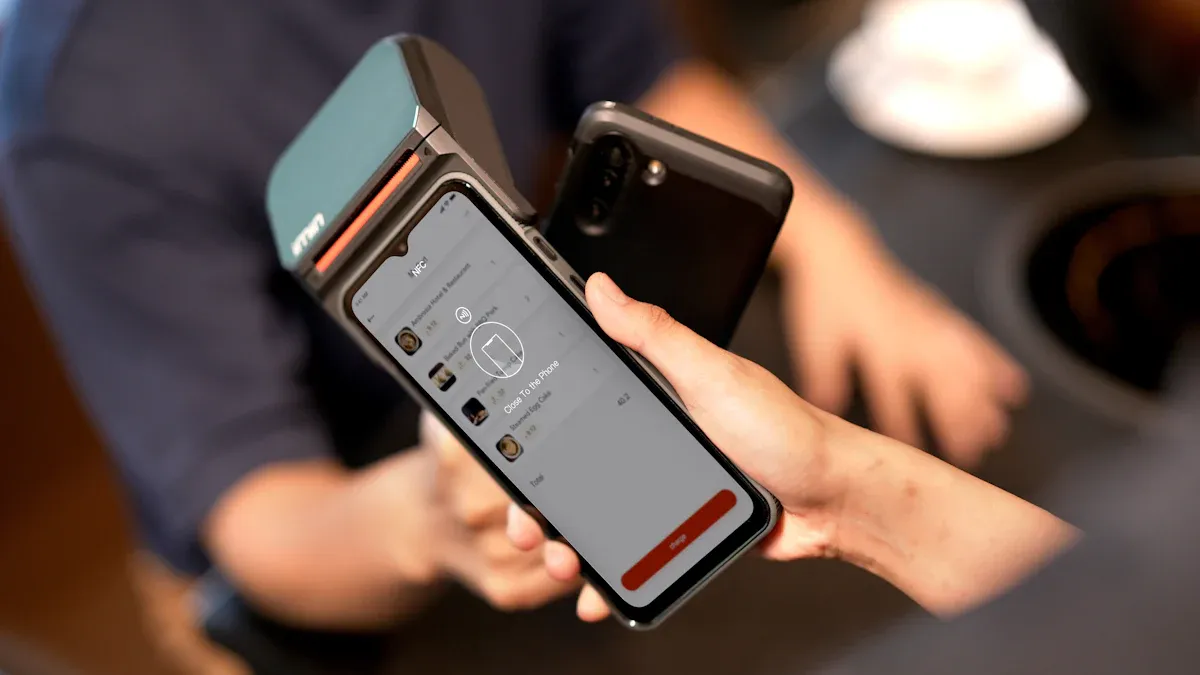
Apple Pay gives users granular control over payment behavior through the Wallet app. From card management to privacy settings, you can customize Apple Pay to match your usage habits.
You can manage the following settings:
-
Add, remove, or update payment cards in Wallet
-
Set a default card for faster checkout
-
Customize Apple Pay button style and language
-
Manage in-app and website payment requests
-
Choose supported payment networks
-
Review transaction details before confirming payment
-
View and manage recurring or automatic payments
-
Track orders directly in Wallet
-
Control privacy features such as merchant-specific payment tokens
Apple Pay also supports multi-merchant payments, allowing a single checkout across multiple sellers without sharing your card details individually. This reduces exposure and improves data security.
Why Correct Settings Improve Security
Apple Pay settings directly affect fraud prevention. Academic research shows that digital wallets may remain active even when a physical card is blocked, making proper configuration essential.
By enabling strong authentication and regularly reviewing Wallet activity, you reduce the likelihood of unauthorized transactions. Apple Pay’s design prioritizes user control, but security depends on how those controls are used.
Device and iOS Compatibility
Supported Devices
Apple Pay only works on compatible hardware. If your device does not support Apple Pay, the payment option may not appear at checkout.
Apple Pay is supported on:
-
iPhone 6 and later
-
iPad Pro, iPad Air 2, iPad mini 3 and later
-
Apple Watch Series 1 and later
-
Mac models with Touch ID or paired with an Apple Pay–enabled iPhone
Apple Pay relies on NFC for contactless payments and integrates tightly with Wallet across Apple devices.
Keep iOS Updated
Running the latest iOS version is essential for Apple Pay stability and security. New releases include bug fixes, security patches, and expanded payment capabilities.
Recent Apple Pay features, particularly for browser-based payments, require newer iOS versions. Skipping updates increases the risk of failed transactions and compatibility issues.
Fixing Apple Pay Not Working
Restart Your Device
Temporary system glitches are a common cause of Apple Pay issues. Restarting your device clears cached processes and often resolves payment failures immediately.
Sign Out and Back Into Your Apple ID
If Apple Pay fails to sync cards or services, signing out and back into your Apple ID can refresh account connections. This step may temporarily remove cards from Wallet, but it often resolves persistent errors.
Check for Apple Service Outages
Occasionally, Apple Pay issues originate from Apple’s servers rather than your device. Checking Apple’s System Status page helps confirm whether Apple Pay services are experiencing downtime.
Troubleshooting Checklist
If Apple Pay is not working, verify the following:
-
Device supports Apple Pay
-
iOS is fully updated
-
Card is valid and not expired
-
Region settings are correct
-
Internet connection is stable
-
Apple Pay service is operational
-
Card is correctly added to Wallet
If problems persist, contact your bank or Apple Support.
Verify and Maintain Card Information
Check Card Details
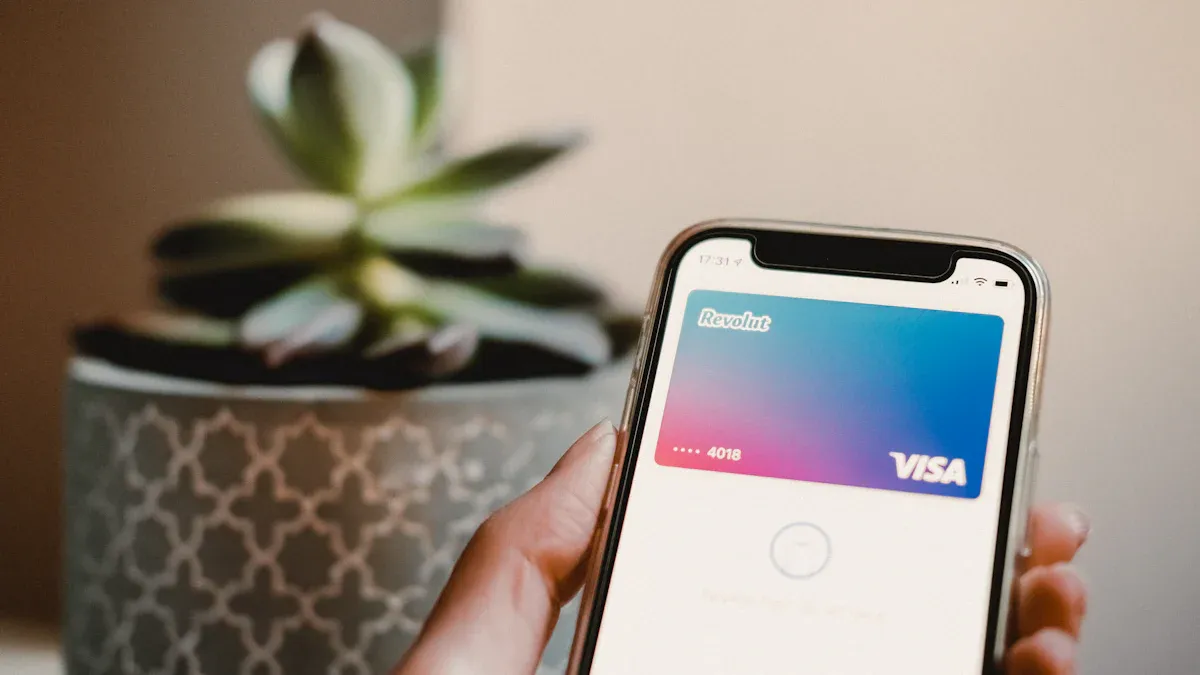
Incorrect card data is one of the most common reasons Apple Pay fails. In Wallet, verify that:
-
Card number matches bank records
-
Expiration date is current
-
Billing address is accurate
Repeated failed attempts may trigger bank-level security blocks, so accuracy matters.
Update Expired or Blocked Cards
Expired or suspended cards must be updated or replaced. Decline codes associated with expiration or restrictions typically require contacting your bank.
Keeping cards current prevents failed subscriptions, online purchases, and recurring payments.
Manage Payment Methods Effectively
Add or Remove Cards
You can add new cards directly in Wallet. Removing and re-adding a card often resolves token or verification errors.
Note that cards used for App Store or subscription payments must also be updated in Apple ID payment settings, not just Wallet.
Set a Default Card
Setting a default card speeds up checkout and reduces user errors. Apple Pay automatically uses the front-most card in Wallet unless you select another.
This small adjustment improves reliability, especially for frequent payments.
Adjust Region and Network Settings
Set the Correct Region
Apple Pay availability and features vary by country. If your region is set incorrectly, some cards or features may stop working.
Ensure your device region matches your current location, especially when traveling or relocating.
Ensure Reliable Network Access
Apple Pay requires network connectivity for token verification and fraud checks. Weak or restricted networks can cause payment failures.
Use trusted Wi-Fi or cellular connections when possible.
Disable Unwanted Apple Pay Features
Turn Off Double-Click Activation
The side-button shortcut enables fast payments but may trigger accidentally. You can disable this option in Wallet & Apple Pay settings to avoid unintended prompts.
Use Guided Access for NFC Control
Guided Access limits background system behavior and can prevent Apple Pay from activating near NFC terminals unintentionally.
Manage Notifications
Reducing unnecessary Wallet notifications helps you quickly spot legitimate payments and potential issues.
Apple Pay on Mac
Enable or Disable Apple Pay on macOS
Apple Pay on Mac can be enabled or disabled in System Settings. Removing cards before selling or resetting a Mac prevents future account issues.
Fix macOS Security Conflicts
Changes to macOS security features, such as iCloud Keychain or system protections, can disrupt Apple Pay. Re-signing into iCloud or re-adding cards often resolves these issues.
Remove or Disable Cards Safely
Remove Cards from Apple Pay
Cards can be removed directly from Wallet or remotely via iCloud if a device is lost. This prevents unauthorized use without canceling the physical card.
Disable Cards on Specific Devices
You can remove cards from one device while keeping them active on others, maintaining flexibility without compromising security.
Prevent Future Apple Pay Issues
Review Settings Regularly
Periodic reviews help catch outdated cards, incorrect defaults, and unused payment methods before they cause failures.
Stay Updated
Enable automatic updates to ensure you receive the latest security patches and Apple Pay improvements.
Conclusion
Apple Pay issues are rarely caused by the payment system itself. Most problems stem from outdated settings, expired cards, unsupported devices, or software mismatches.
By keeping your Apple Pay settings accurate and up to date, you ensure faster payments, fewer declines, and stronger protection of your financial data.
Frequently Asked Questions
Why does Apple Pay keep declining my card
The card may be expired, blocked, or incorrectly added. Verify details, remove and re-add the card, or contact your bank.
Can Apple Pay work without internet access
In-store payments can work offline using stored tokens. Online and in-app purchases require an active connection.
What should I do if I lose my iPhone
Use Find My to lock the device or remove cards remotely via iCloud.
How do I change the default Apple Pay card
Open Wallet and drag your preferred card to the front.
Why does my bank require extra verification
Banks may request verification to prevent fraud when adding or using cards in Apple Pay.
Related content